
Settings
Manage your profile preferences and settings in VolleyTrack. This section covers all customization and notification options in the system.
🔔 Notification Preferences
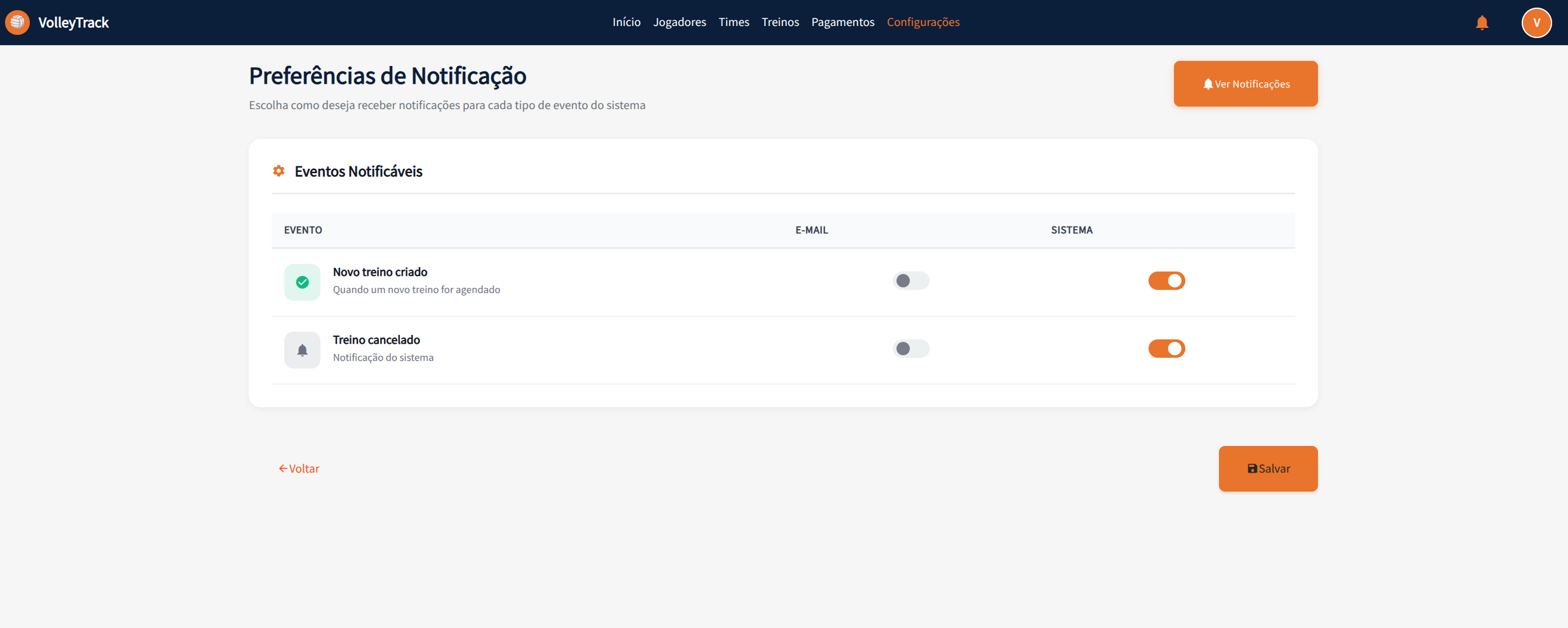
Notification preferences allow you to choose how you want to receive notifications for each type of system event. Customize your preferences to receive only the notifications that are important to you.
How to Access
- In the top menu, click "Settings"
- On the settings page, you'll see the "Notification Preferences" section
- Alternatively, you can click the "View Notifications" button in the top right corner
Page Structure
Header
- Title: "Notification Preferences"
- Subtitle: "Choose how you want to receive notifications for each type of system event"
- View Notifications Button: Orange button in the top right corner with a bell icon to view received notifications
Notifiable Events Section
The "Notifiable Events" section presents a table with all types of events that can generate notifications in the system.
Notification Types
Each event has three main columns:
EVENT Column
- Icon: Visual icon representing the event type
- ✅ Green with checkmark: For positive events (e.g., new training created)
- 🔔 Gray with bell: For informational or system events
- Event Name: Descriptive name of the event
- Description: Brief explanation of when the event occurs
E-MAIL Column
- Toggle Switch: Switch to enable/disable email notifications
- Orange (Enabled): You will receive email notifications for this event
- Gray (Disabled): You will not receive email notifications for this event
SYSTEM Column
- Toggle Switch: Switch to enable/disable system notifications
- Orange (Enabled): You will receive system notifications (bell icon) for this event
- Gray (Disabled): You will not receive system notifications for this event
Available Events
New Training Created
- Description: "When a new training is scheduled"
- When It Occurs: Whenever a new training is created and scheduled in the system
- Recommendation: Enable this notification to be informed about newly scheduled trainings
Training Canceled
- Description: "System notification"
- When It Occurs: When a training is canceled
- Recommendation: Enable this notification to be informed about training cancellations
TIP
You can configure each event independently. For example, you can receive email notifications for "New training created" but only system notifications for "Training canceled".
How to Configure
- Identify the Event: Locate the event you want to configure in the list
- Configure Email: Use the toggle switch in the "E-MAIL" column to enable or disable email notifications
- Configure System: Use the toggle switch in the "SYSTEM" column to enable or disable system notifications
- Save Changes: Click the "Save" button in the bottom right corner to apply the settings
Available Actions
Save
- Location: Bottom right corner
- Icon: Diskette icon
- Function: Saves all changes made to notification preferences
- Important: Changes will only be applied after clicking "Save"
Back
- Location: Bottom left corner
- Text: "← Back" in orange
- Function: Returns to the previous page without saving changes
- Warning: If you made changes, they will be discarded when clicking "Back"
Usage Tips
- Customize as Needed: Configure only the notifications that are relevant to you
- Combine Email and System: You can enable both notification types for important events
- Save Emails: Disable email notifications for less critical events and use only system notifications
- Stay Informed: Enable system notifications for important events to not miss information
- Periodic Review: Review your preferences periodically to ensure they align with your needs
Benefits
- Full Control: You decide exactly which notifications you want to receive
- Noise Reduction: Avoid being overwhelmed with unnecessary notifications
- Flexibility: Configure different notification types for different events
- Personalization: Adapt the system to your preferences and needs