
Teams
Manage your teams efficiently in VolleyTrack. This section covers all features related to team management.
📋 Team Listings
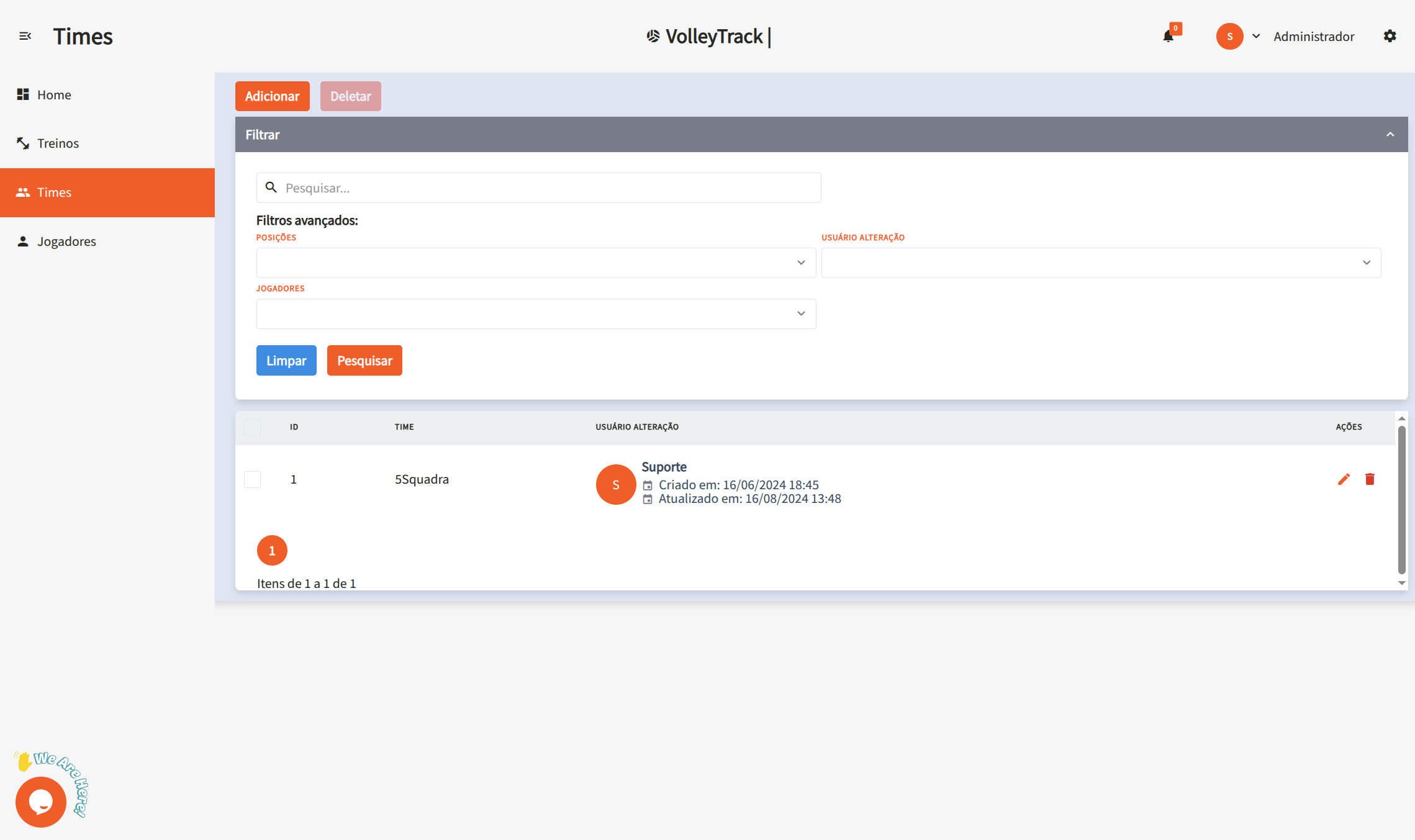
On the team listing screen, you have access to the following features:
Main Features
- Add: Create a new team.
- Delete: Remove existing teams.
- Search: Find registered teams.
- Clear: Reset search criteria for a new query.
Advanced Filters
Use additional filters to refine your search:
- Positions: Filter players by their positions.
- User: See who made changes.
- Players: Find teams that include specific players.
📊 Team Statistics
When clicking "View Statistics" in the team listing or on the Dashboard, a modal will open displaying detailed information and statistics of the selected team.
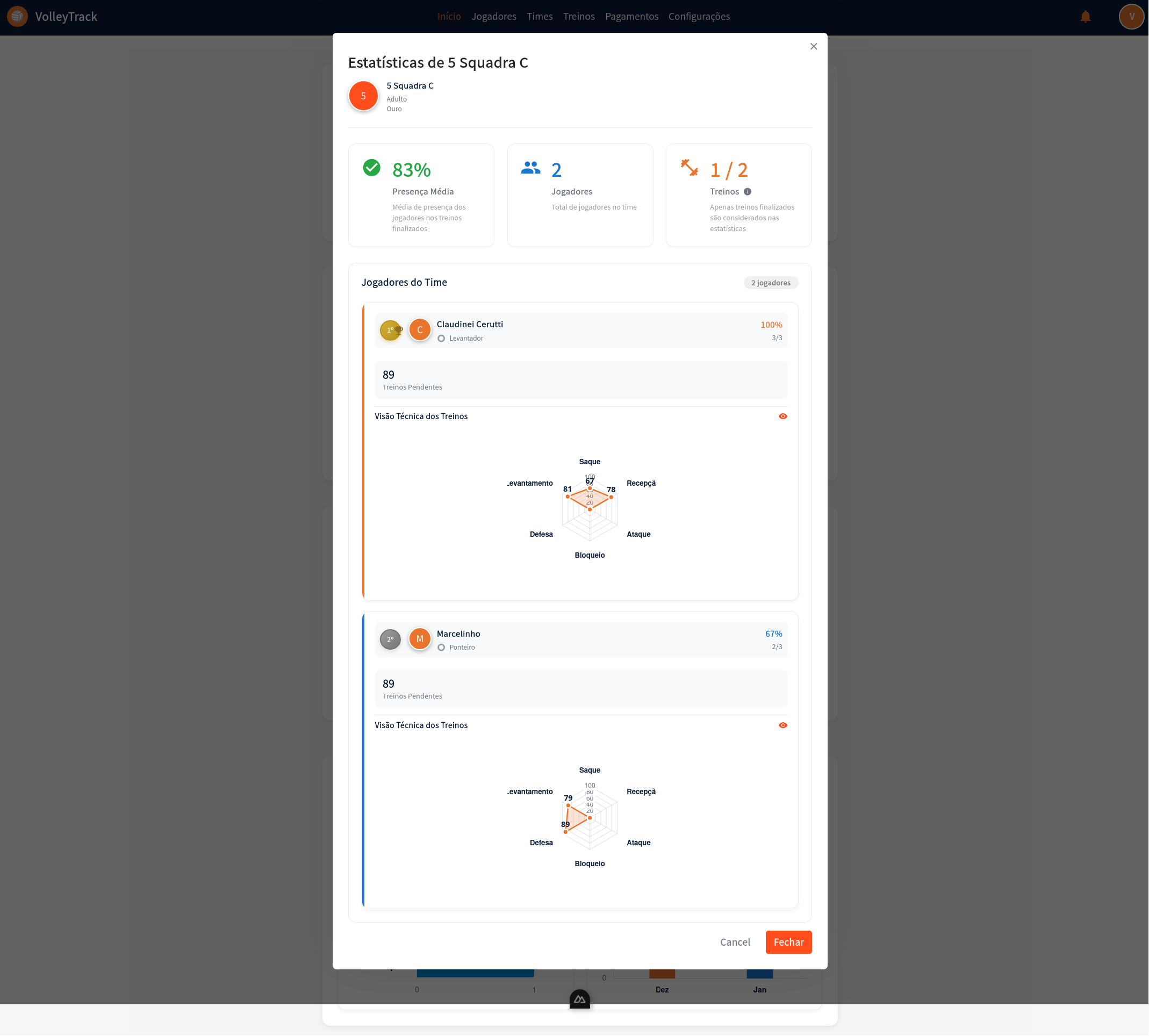
Modal Header
- Team Avatar: Colored circle with team number or initial
- Team Name: Full name displayed in the modal title
- Category: Team category and level (e.g., Adult, Gold)
- Close Button: "X" icon in the top right corner to close the modal
Team Overview
The modal displays three main cards with consolidated statistics:
Average Presence Card
- Icon: Green checkmark
- Percentage: Average presence rate of players (e.g., 83%)
- Description: "Average Presence" with explanation "Average presence of players in completed training sessions"
Players Card
- Icon: Blue icon representing people
- Total: Total number of players registered in the team (e.g., 2 Players)
- Description: "Total players in the team"
Trainings Card
- Icon: Orange icon representing trainings
- Statistics: Format "X/Y Trainings" where:
- X: Number of completed trainings
- Y: Total number of registered trainings
- Description: "Only completed training sessions are considered in the statistics" with information icon
Team Players
This section lists all team players with their individual statistics.
Information by Player
For each team player, you'll see:
- Ranking Position: Colored badge showing the player's position in the team ranking (e.g., 1st, 2nd)
- Avatar: Colored circle with the player's initial
- Name: Player's full name
- Position: Player's role on the team (e.g., Setter, Outside Hitter)
- Presence Percentage: Player's presence rate (e.g., 100%, 67%)
- Statistics: Format "X/Y" (presences/total trainings)
- Pending Trainings: Information about scheduled trainings (e.g., "89 Pending Trainings")
Technical Training View per Player
Each player has their own section with a radar chart:
Individual Radar Chart: Shows the player's performance in each fundamental:
- Serve: Performance value in serving
- Reception: Performance value in reception
- Attack: Performance value in attack
- Block: Performance value in blocking
- Defense: Performance value in defense
- Setting: Performance value in setting
Scale: Values from 0 to 100, with marks at 20, 40, 60, 80, and 100
Visualization: Filled orange polygon connecting the values of each fundamental
Comparison: Allows comparing performance between different players on the same team
Modal Features
- Detailed View: Access complete statistics for each team player
- Performance Comparison: Compare player performance through radar charts
- Internal Ranking: See each player's position in the team presence ranking
- Technical Analysis: Identify strengths and areas for improvement for each player
Modal Actions
- Cancel: Gray button to cancel and close the modal
- Close: Orange button to close the modal
🔄 Automatic Relationship with Future Trainings
VolleyTrack has an automatic feature that facilitates player and training management, saving time and ensuring data consistency.
How It Works
When you add or remove a player from a team that already has future trainings registered, the system automatically:
- When Adding a Player: The player is automatically included in all future trainings of the team from the current date onwards.
- When Removing a Player: The player is automatically removed from all future trainings of the team from the current date onwards.
Important Details
- ✅ Only Future Trainings: Automation affects only trainings with date equal to or later than the current date
- ✅ Preserves History: Past or already finalized trainings are not modified, preserving attendance history
- ✅ Automatic Synchronization: The relationship is maintained automatically, ensuring consistency
- ✅ Time Saving: No need to manually add or remove each player from each training
Practical Example
Scenario 1 - Adding a Player:
- Team "5 Squadra B" has future trainings registered from January to December 2026
- In March, you add a new player to the team
- The system automatically adds this player to all future trainings of the team from March onwards
- The player will automatically appear in the roll call of all future trainings
Scenario 2 - Removing a Player:
- A player is part of team "5 Squadra B" and is related to future trainings
- In June, you remove this player from the team
- The system automatically removes this player from all future trainings from June onwards
- The player will no longer appear in future training roll calls, but attendance history in past trainings is preserved
TIP
This feature automates and facilitates coaches' work, eliminating the need to manually relate each player to each future training. The system handles all synchronization automatically!
💡 Tips
- Use advanced filters to quickly find specific teams.
- Check change history through the user filter.
- Link players to teams to facilitate training management.
- View Statistics: Click "View Statistics" to see complete team analyses.
- Compare Players: Use radar charts to compare team player performance.
- Monitor Presence: Track team average presence and identify players who need attention.
- Automatic Relationship: When adding or removing players from a team, the system automatically updates future trainings.